 Alva Code
Connect AI
Install and sign in to a coding CLI
The missing step between an existing AI account and a usable coding agent.
Step by step
- Open Settings → CLI Tools, or select the subscription path during setup.
- Find the tool for your provider, for example OpenAI Codex CLI or Claude Code. If it is missing, choose “Install” and wait for the result.
- Once installed, choose “Open / sign in” or “Sign in”. Follow the provider’s instructions in the terminal or browser that opens.
- Return to Alva. In setup, use “Check again”; in Settings, reopen CLI Tools if the status has not refreshed.
- Check both states: “Installed” means the tool exists; “Authenticated” or “Connected” means the provider sign-in was detected.
- Open a project and select that provider in the model picker before sending your task.
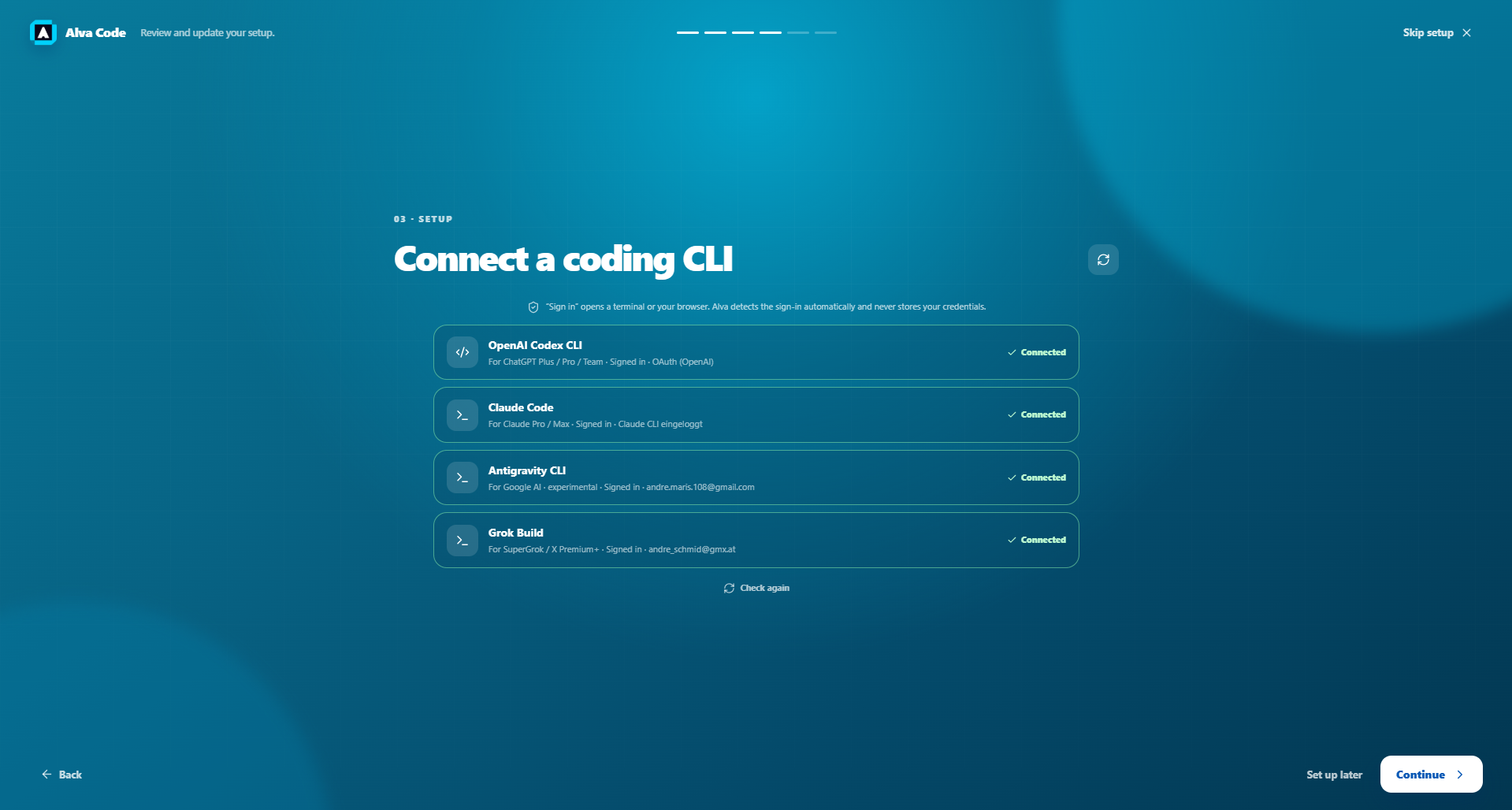
Example screenshot · English interface